
This post may contain affiliate links. If you make a purchase through my links, I may earn a small commission at no extra cost to you. I only recommend products I genuinely believe will help you. Read my full disclosure here.
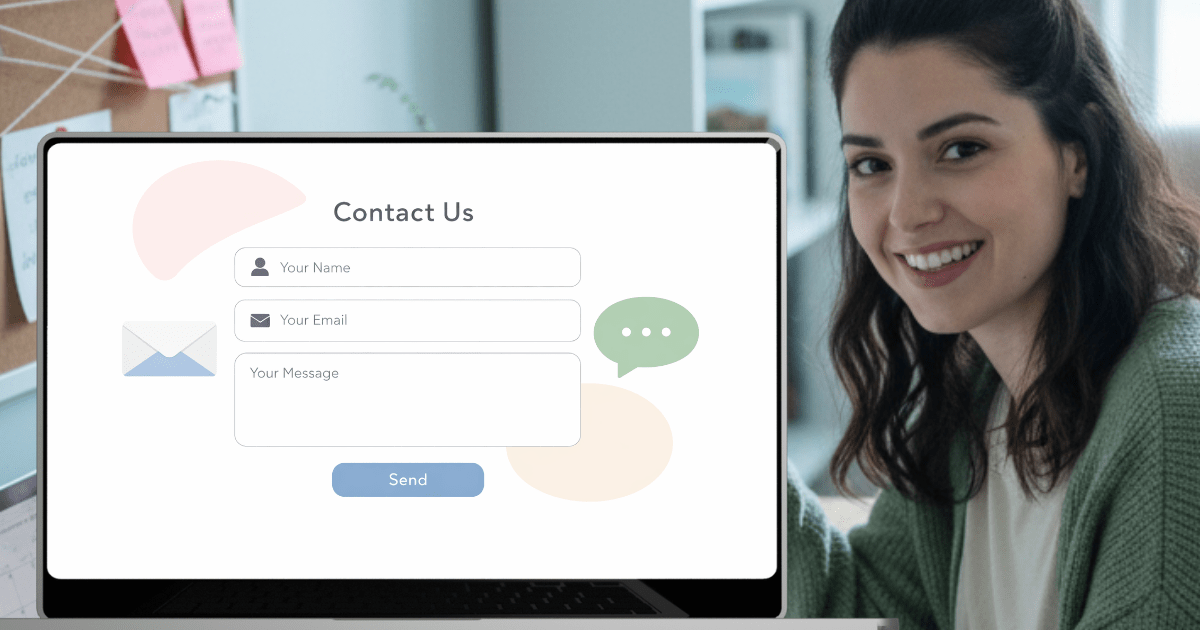
If you’re wondering what to write on your contact page, you’re not alone — it’s one of the most overlooked pages on beginner blogs. Most new bloggers either skip it entirely or slap on a bare form with zero introduction.
Now that you’ve set up your Affiliate Disclosure in FTC-Compliant Affiliate Disclosure for Bloggers: Copy-Paste Template, your blog’s legal foundation is almost complete — but there’s one more page that helps readers actually reach you: your Contact page.
Here’s why that matters: according to a KoMarketing study on B2B web usability (frequently cited by HubSpot and other marketing sources), 44% of website visitors will leave a company’s site entirely if they can’t find contact information or a phone number. The same study found that 51% of people consider “thorough contact information” the most important element missing from many company websites.
Your contact page isn’t just a formality — it’s a trust signal. When someone taps through from a Pinterest pin and lands on your blog, a warm, well-written contact page tells them: this is a real person, and they actually want to hear from me.
In this guide, you’ll learn exactly what to write on your blog’s contact page — the intro text, the sections to include, niche-specific examples you can adapt, and copy-paste AI prompts to get your first draft done today.
What you’ll learn in this guide
By the end of this post, you’ll know how to:
- Write a welcoming intro that matches your blog’s voice and niche
- Choose which sections to include (and which to skip as a beginner)
- Set clear expectations so readers know when they’ll hear back
- Avoid the most common contact page mistakes that kill trust
- Use AI to draft and refine your contact page copy quickly
- Connect your contact page to your broader blog foundation
Let’s build the page that turns silent readers into active connections.
Why your contact page matters more than you think
Your contact page is one of the first places readers check when they want to know if your blog is legitimate. It sits alongside your About page and legal pages as a core trust signal — and for Pinterest visitors who just discovered you through a pin, it can be the deciding factor between Saving your content or closing the tab.
Beyond trust, a well-written contact page opens doors you might not expect as a beginner:
- Reader questions that spark future blog post ideas
- Brand collaborations and sponsorship inquiries
- Fellow bloggers reaching out for guest posts or partnerships
- Affiliate managers finding you through your content
Without a contact page — or with a page that feels cold and empty — you’re quietly closing all of those doors before they even open.
The 5 essential elements of a beginner contact page
You don’t need a complex, multi-section contact page when you’re starting out. A simple, warm page with these five elements is more effective than an overdesigned one that feels corporate.
1. A welcoming intro (2–3 sentences)
This is the most important part — and the part most beginners skip. Your intro should feel like you’re greeting someone at your front door, not directing them to a customer service desk.
Good example: “Have a question about blogging, want to collaborate, or just want to say hi? I’d love to hear from you. Fill out the form below, and I’ll get back to you within 48 hours.”
Bad example: “Use the form below to contact us regarding business inquiries.”
The difference? Warmth. Specificity. A human voice.
2. What you’re open to hearing about
Spell out the kinds of messages you welcome. This removes the “Am I bothering them?” hesitation that stops many readers from reaching out.
Include lines like:
- Reader questions about blogging, WordPress, or getting started
- Collaboration or guest post ideas
- Brand partnership and sponsorship inquiries
- General feedback or just saying hello
You can customize this list to match your niche. A food blogger might add recipe questions; a wellness blogger might add product review requests.
3. Expected response time
Setting a clear timeframe builds trust and manages expectations. Most beginner bloggers can realistically respond within 24–48 hours. If you check email less frequently, say so honestly — “I check messages every few days and will respond within 72 hours” is far better than leaving people guessing.
4. A simple contact form
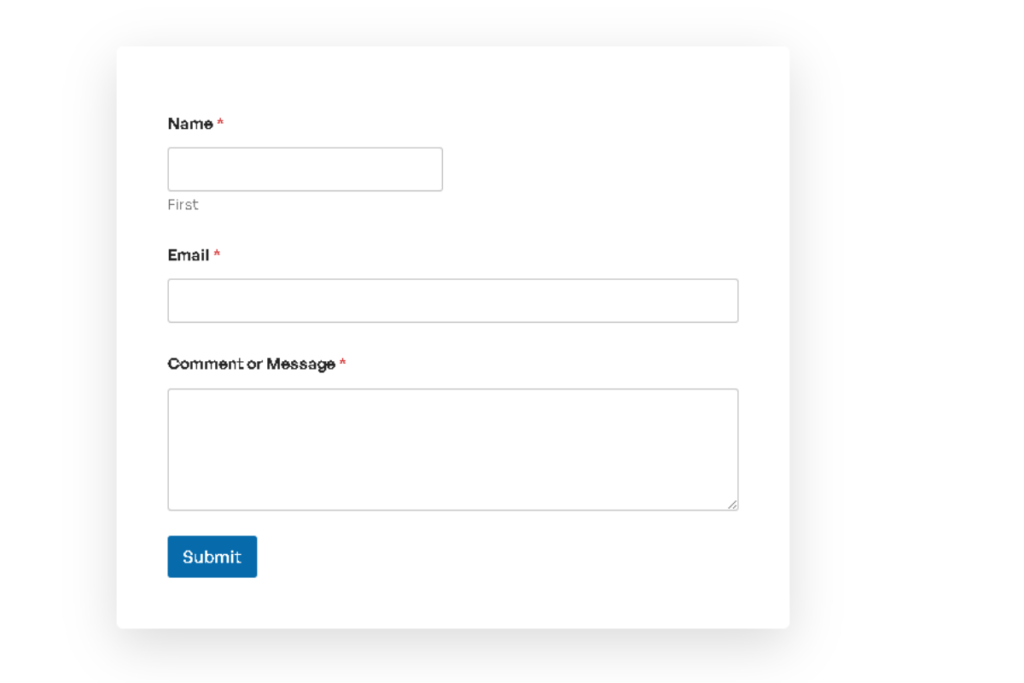
Your contact form is the functional heart of your page. For beginners, I recommend WPForms Lite — it’s free, takes about 5 minutes to set up, and includes built-in spam protection.
You’ll learn exactly how to install and configure WPForms Lite in the next guide: How to Add a Contact Form to WordPress with WPForms Free Easy Setup.
For now, keep your form fields simple:
- Name
- Email address
- Message
That’s it. Three fields. Don’t ask for phone numbers, company names, or dropdown categories — those additions create friction that discourages beginners from reaching out.
5. Alternative contact options (optional)
If you’re active on social media, you can include links to your Pinterest profile or other platforms as a secondary way to connect. Keep this brief — one or two lines maximum.
Example: “You can also find me on Pinterest at @BloggingUnlocked where I share new content weekly.”
Niche-specific contact page examples
Your contact page should sound like you — not like a template. Here are examples for different blog niches to show how the same structure adapts to different voices.
Food blog example:
“Got a question about a recipe? Curious about ingredient swaps? Want to collaborate on something delicious? I’d love to hear from you. Drop me a message below, and I’ll respond within 48 hours. If it’s about a specific recipe, mention the post name so I can help faster.”
Wellness blog example:
“Whether you have a question about a workout routine, want to share your own wellness journey, or are interested in partnering on health-focused content — my inbox is open. Fill out the form below, and I’ll get back to you within 48 hours.”
Finance blog example:
“Have a budgeting question? Want to suggest a topic for a future post? Interested in a collaboration? I read every message personally. Fill out the form below, and expect a response within 48 hours. Please note: I share financial information for educational purposes only — I’m not a licensed financial advisor.”
Parenting blog example:
“Parenting questions, collaboration ideas, or just want to say hello from one tired parent to another? I’d love to hear from you. Fill out the form below, and I’ll respond within 48 hours — probably during naptime.”
Notice the pattern: each one names specific topics the reader might contact about, sets a response time, and uses a warm, conversational tone that matches the blog’s personality.
Common contact page mistakes that kill trust
Even with the right structure, a few common errors can undermine your contact page. Here’s what to watch for.
Mistake 1: No intro text at all
A bare contact form with no greeting feels impersonal. Even two sentences of warm introduction make a measurable difference in how comfortable readers feel reaching out. Always write something above your form.
Mistake 2: Displaying your email address publicly
Putting your raw email address on the page invites spam bots. Use a contact form instead — it keeps your inbox protected while still making you reachable. WPForms Lite handles this perfectly.
Mistake 3: Asking for too much information
Every extra form field reduces submissions. Studies on form conversion consistently show that shorter forms with fewer fields perform significantly better than long ones. Stick to name, email, and message unless you have a specific reason to ask for more.
Mistake 4: No response time mentioned
When readers don’t know when to expect a reply, they assume the worst — that you probably won’t respond at all. A simple “I’ll respond within 48 hours” turns uncertainty into trust.
Mistake 5: Making it hard to find
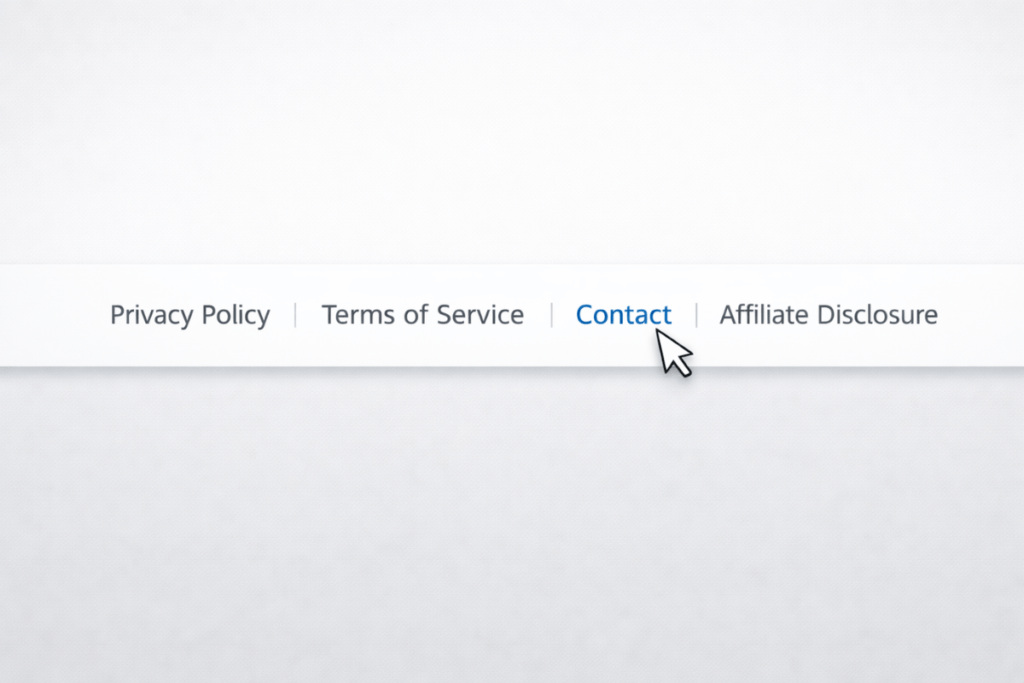
Your contact page should be accessible from your main navigation menu or footer — not buried three clicks deep. If Pinterest visitors can’t find your Contact page within seconds of looking, they’ll bounce.
How to create your contact page in WordPress
If you’ve been following this series, you already created a Contact page placeholder in 7 Pages Every Blog Needs Before You Launch — Complete Checklist. Now it’s time to add your real content.
- In your WordPress dashboard, go to Pages → All Pages.
- Find your Contact page and click Edit.
- Delete any placeholder text.
- Write your intro text and “what I’m open to” section using the structure above.
- Add your WPForms contact form using the shortcode or block (detailed setup in the next post: How to Add a Contact Form to WordPress with WPForms Free Easy Setup).
- Add any optional elements — social links, response time note, niche-specific disclaimer.
- Click Update to save.
Your contact page will automatically match your site’s theme. If you’re using Blocksy or most modern WordPress themes, no additional styling is needed.
AI assistance: draft and refine your contact page
Writing about yourself or your contact preferences can feel surprisingly awkward. AI can help you get a solid first draft — then you polish it until it sounds like you.
Use Google Gemini to create your first draft
Copy-paste this prompt into Google Gemini:
I’m creating a Contact page for my [YOUR NICHE] blog called [YOUR BLOG NAME]. My blog helps [TARGET AUDIENCE] with [MAIN TOPICS].
Write a warm, conversational Contact page that includes:
- A 2–3 sentence welcoming intro
- A bullet list of what I’m open to hearing about (reader questions, collaborations, partnerships, general feedback)
- An expected response time (48 hours)
- A brief note about where else they can find me (Pinterest)
Make it sound friendly and authentic — not corporate. Aim for 150–200 words total. Write in first person.
Gemini will generate a solid draft. Read it out loud — if anything sounds stiff or unlike you, edit it. Your contact page should sound exactly like how you’d welcome a stranger who reached out with a genuine question.
Once you have a draft, use Perplexity to quality-check it before publishing.
Use Perplexity to verify your contact page
Once you have a draft, use Perplexity to quality-check it. Copy-paste this prompt:
Review this Contact page for a beginner blogger. Check if it:
- Opens with a warm, welcoming greeting
- Clearly lists what types of messages the blogger welcomes
- Sets an expected response time
- Keeps the tone conversational and beginner-friendly
- Avoids displaying a raw email address (uses a form instead)
- Is concise — under 200 words
- Feels approachable, not corporate
Here is my Contact page: [PASTE YOUR CONTACT PAGE DRAFT]
Suggest specific edits to improve warmth, clarity, and professionalism.
This two-step approach — draft with Gemini, refine with Perplexity — saves time while keeping your contact page authentic and reader-tested.
Quick checklist before you publish
Before hitting Update, run through this final check:
- Contact page opens with a warm, welcoming intro (not a bare form)
- Written in first person throughout
- Clearly lists what you’re open to hearing about
- Includes expected response time (e.g., 48 hours)
- Contact form is simple — name, email, message only
- No raw email address displayed publicly
- Page is linked in your navigation menu or footer
- Tone is warm, conversational, and beginner-friendly
- Niche-specific disclaimer included if applicable (finance, wellness, legal)
- WPForms Lite form is functional and spam-protected
If every box is checked, you’re ready to publish.
FAQ: blog contact page for beginners
Q: Do I need a contact page if I’m just starting out?
Yes. Even with zero traffic, your contact page signals professionalism and readiness. It’s also often checked during affiliate program applications — many programs want to see that your blog has basic pages in place before approving you.
Q: Should I display my email address or use a contact form?
Use a contact form. Displaying your email publicly invites spam bots that will flood your inbox within days. WPForms Lite gives you spam protection built in.
Q: What if I get spam through my contact form?
WPForms Lite includes honeypot fields and CAPTCHA options that block most spam automatically. If you followed the earlier guide on Must-Have WordPress Plugins for New Bloggers, you also have Antispam Bee running — between the two, spam is rarely an issue.
Q: How often should I update my contact page?
Review it whenever you change your niche focus, add new collaboration types, or update your social media presence. At minimum, check it every 3–6 months to make sure the response time and contact types still reflect your current situation.
Q: Can I use the same contact page structure for multiple niches?
Absolutely. The five-element structure (intro, what you’re open to, response time, form, optional social links) works for any niche. Just customize the language and examples to match your audience.
Q: Where should your Contact page link appear?
In your footer menu at minimum, alongside your Privacy Policy, Terms & Conditions, and Affiliate Disclosure. If you have room in your main navigation, adding it there increases visibility for Pinterest visitors who land on any page of your site.
What’s next?
Your contact page is now ready to turn silent readers into active connections — whether that’s a reader with a question, a brand with an opportunity, or a fellow blogger looking to collaborate.
But a contact page with no working form is like a mailbox with no slot. Next, you’ll learn exactly how to install and configure WPForms Lite — the free contact form plugin — step by step, in How to Add a Contact Form to WordPress with WPForms Free Easy Setup.
Ready to get eyes on your new blog? Anastasia Blogger’s Pinterest SEO & Traffic Secrets walks you through the exact strategy to turn this setup into consistent traffic.