

Affiliate Disclaimer: This post may contain affiliate links. As an affiliate, I may earn a commission if you purchase through my links, at no extra cost to you. Please read our full disclosure for more info.
Now that you’ve chosen your profitable blog niche, you might be wondering: “How do I actually get people to find my blog?”
If you’re planning to use Pinterest as your main traffic source (which I highly recommend for beginners), the answer starts with keywords.
But here’s the thing most new bloggers don’t realize: Pinterest keywords work differently than Google keywords. And if you skip this step before launching your blog, you’ll end up creating content that no one searches for.
I learned this the hard way. I spent months writing blog posts based on what I thought people wanted, only to discover later that Pinterest users were searching for completely different phrases. The traffic never came because I never validated my keywords first.
This post is about doing it right from the start—before you write a single blog post, before you create your first pin, and definitely before you choose your blog categories.
By the end of this guide, you’ll know exactly how to find Pinterest keywords that real people are actively searching for, using completely free methods that don’t require any paid tools.
What You’ll Learn
- Pinterest vs. Google: Why you must treat Pinterest as a “Visual Discovery Engine” and how its keyword logic differs from traditional SEO.
- The ABC Method: How to use Pinterest’s own search bar and the “Guided Search” bubbles to find high-traffic phrases for free.
- Decoding Search Intent: How to tell if a keyword is for “Inspiration” (broad) or “Action” (intent-to-buy) so you can create pins that actually convert.
- Where to Place Keywords: The “Big Five” locations on your blog and Pinterest profile where keywords must go to ensure your pins are indexed correctly.
- The Trends Shortcut: How to use the free Pinterest Trends tool to find out exactly when your niche topics peak each year.
This keyword strategy is Phase 1, Step 4 of our Start Here: How to Start a Blog for Beginners (Step-by-Step Roadmap).
Why Pinterest Keywords Matter Before You Launch
Pinterest isn’t just a social media platform—it’s a visual search engine. With over 578 million monthly active users, people come to Pinterest specifically to search for ideas, solutions, and inspiration.
That means if you use the right keywords in your pins, boards, and blog content, Pinterest will show your content to people who are actively looking for what you offer.
But here’s the critical part: you need to know these keywords BEFORE you build your blog structure.
Here’s why:
Your blog categories should match Pinterest search terms. If you create a category called “Wellness Wednesday” but Pinterest users search for “stress relief tips” or “self-care routines,” you’ve already created a mismatch.
Your first blog posts should target validated keywords. There’s no point writing a post titled “My Favorite Morning Rituals” if people are searching for “morning routine for busy moms” or “5am morning routine checklist.”
Your Pinterest boards need keyword-rich names. A board called “Inspo” won’t rank. But a board called “Budget Meal Prep Ideas for Families” will.
When I finally understood this, everything changed. I stopped guessing and started researching. And that’s exactly what I’m going to teach you today.
The 2 Basic Free Methods to Find Pinterest Keywords
You don’t need expensive tools to do Pinterest keyword research. In fact, some of the best keyword data comes straight from Pinterest itself—completely free.
Here are the two methods I use every single time I plan new content:
- Pinterest Search Bar Autocomplete – See what people are actually typing
- Pinterest Trends Tool – Discover when keywords are most popular
Let’s break down each method step-by-step.
Method 1: Pinterest Search Bar Autocomplete
This is the fastest, easiest, and most beginner-friendly way to find Pinterest keywords.
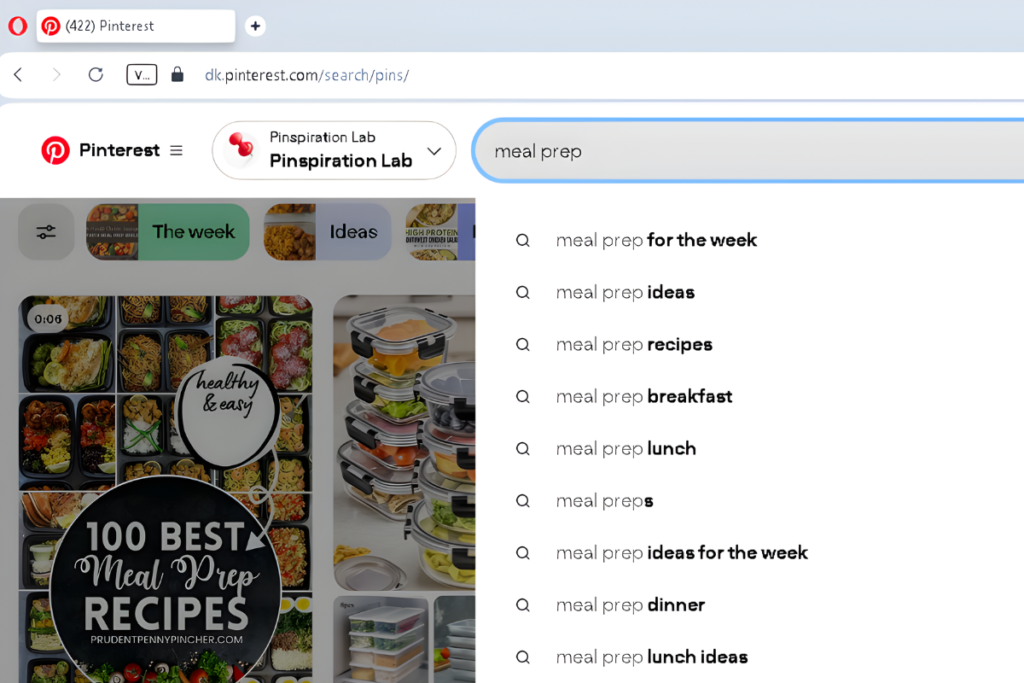
Pinterest’s search bar works just like Google’s autocomplete feature. When you start typing a keyword, Pinterest suggests popular searches based on what millions of users are actively looking for.
The suggestions appear in order of popularity—meaning the keywords at the top of the list get more searches than the ones at the bottom.
How to Use Pinterest Autocomplete for Keyword Research
Step 1: Log Into Your Pinterest Account (Required)
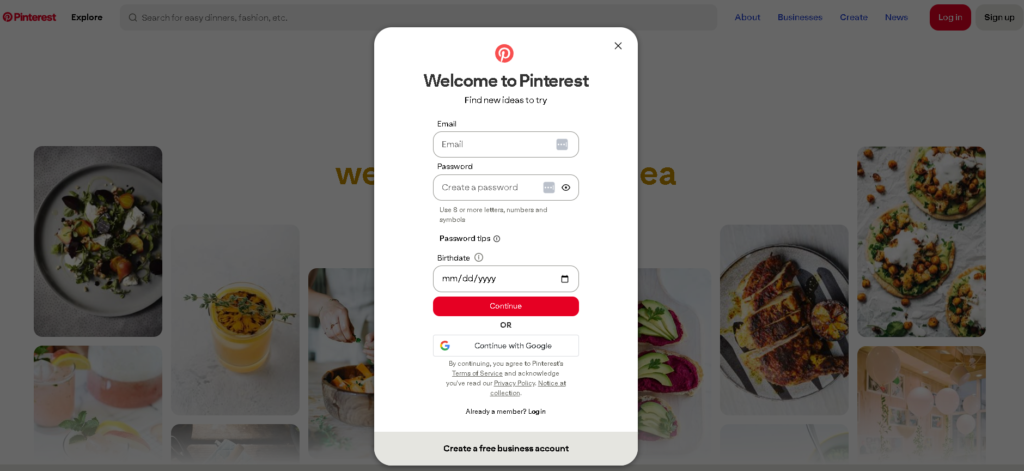
To use Pinterest’s search bar and see autocomplete suggestions, you must be logged into a Pinterest account. While Pinterest allows limited browsing without login (typically 3-5 pins), the search bar and autocomplete feature require an active account.
If you don’t have a Pinterest account yet, creating one takes about 2 minutes and is completely free. Go to pinterest.com and click “Sign up.”
Optional: Create a Separate Research Account
If you want completely unbiased keyword data (not influenced by your personal browsing history and saves), consider creating a separate Pinterest account specifically for keyword research. This ensures autocomplete suggestions reflect what the general Pinterest audience searches for, not personalized results based on your account activity.
Step 2: Use a Private Browsing Window (Optional but Recommended)
Once you’re logged in, you can use a private/incognito window to minimize Pinterest’s tracking and get cleaner keyword suggestions.
- Chrome/Edge: Press Ctrl+Shift+N (Windows) or Cmd+Shift+N (Mac)
- Firefox: Press Ctrl+Shift+P (Windows) or Cmd+Shift+P (Mac)
- Safari: File > New Private Window
Then log into Pinterest in this private window with your research account.
Step 3: Go to Pinterest.com and Click the Search Icon to Access the Search Bar
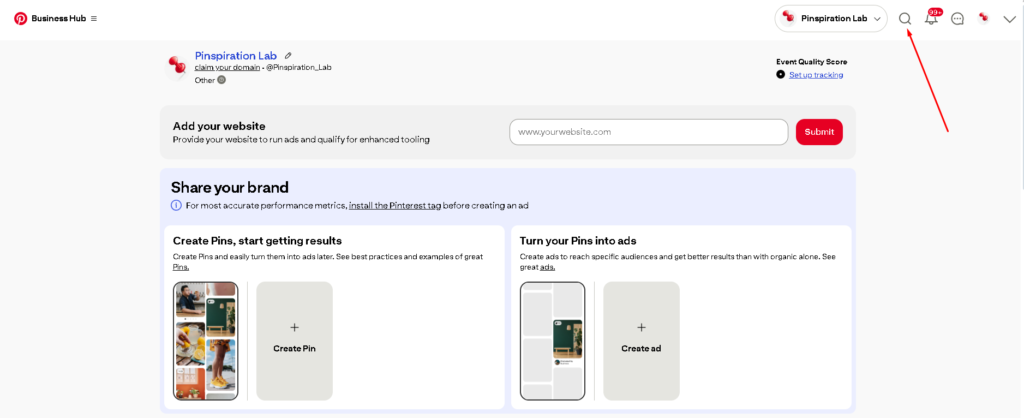
Once you’re logged into your Pinterest account, you’ll see a search icon (magnifying glass) in the top navigation bar. Click on it to open the search bar where you can type your keywords.
Step 4: Type Your Seed Keyword
Start with a broad keyword related to your niche. Let’s use “meal prep” as an example for a food blogger.
The moment you start typing, Pinterest will display a dropdown list of popular search terms.
What You’ll See:
- meal prep lunch ideas
- meal prep for the week
- meal prep ideas
- meal prep lunch
- meal prep recipes

These are real keywords that thousands of Pinterest users are searching for right now.
Step 5: Write Down All Suggestions
Open a notebook (digital or physical) and write down every single suggestion. Don’t skip any—even if they seem slightly off-topic.
Step 6: Click on a Suggestion and Repeat
Click on one of the suggestions (for example, “meal prep for beginners”). This will take you to the search results page.
Now, look just below the search bar. You’ll see colored bubbles called Guided Search. These are additional keyword variations that Pinterest knows are popular.
For “meal prep for beginners,” you might see:
- Easy
- Simple
- Keto
- A Budget

These modifiers tell you exactly how people are refining their searches. This is gold for content ideas.
Step 7: Delete Part of Your Search and Try Again
Go back to the search bar and delete a word. For example, change “meal prep for beginners” to just “meal prep for.”
Pinterest will show you new suggestions like:
- meal prep for the week
- meal prep for the week for beginners
- meal prep for work
Keep repeating this process with different variations. The more you dig, the more keyword ideas you’ll discover.
🤖 AI Assistance: Speed Up Your Keyword Research
Researching keywords manually can take time, especially if you’re exploring multiple niche angles. Here’s where AI can help you organize and expand your keyword lists faster.
Copy-Paste Prompt for Google Gemini:
I'm doing Pinterest keyword research for my [NICHE] blog. I found these seed keywords from Pinterest autocomplete:

[Paste your list here]

Help me organize these into categories based on content type (how-to, listicle, checklist, comparison). Then suggest 10 additional long-tail keyword variations that would work well for Pinterest, focusing on beginner-friendly angles.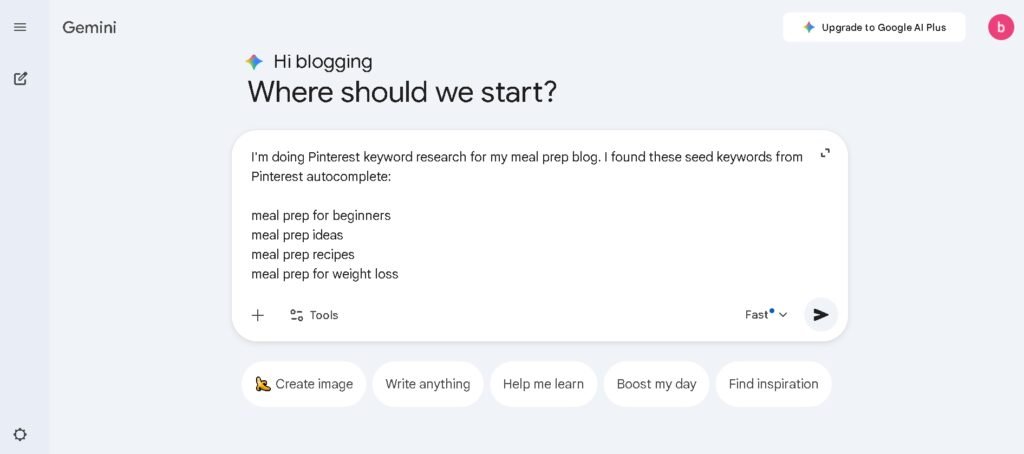
What This Prompt Does:
- Organizes your messy keyword list into logical content categories
- Suggests additional keyword variations you might have missed
- Focuses on beginner-friendly angles (since you’re just starting your blog)
When to Use AI:
- After you’ve collected 20-30 raw keywords from Pinterest autocomplete
- When you want to see how keywords connect to specific content formats
- To generate content ideas based on validated keywords
Pro Tip: Don’t rely solely on AI-generated keywords. Always validate them by typing them into Pinterest’s search bar to confirm they’re real search terms.
Method 2: Pinterest Trends Tool
The Pinterest Trends tool is like having a crystal ball for your content calendar. It shows you not just what people are searching for, but when they’re searching for it.
This is especially powerful for seasonal content, holiday planning, and evergreen topics that spike at certain times of the year.
How to Access Pinterest Trends
Step 1: Set Up a Pinterest Business Account (Free)
Pinterest Trends is only available to users with a Pinterest Business account. The good news? It’s completely free to create one.
If you already have a personal Pinterest account, you have two options:
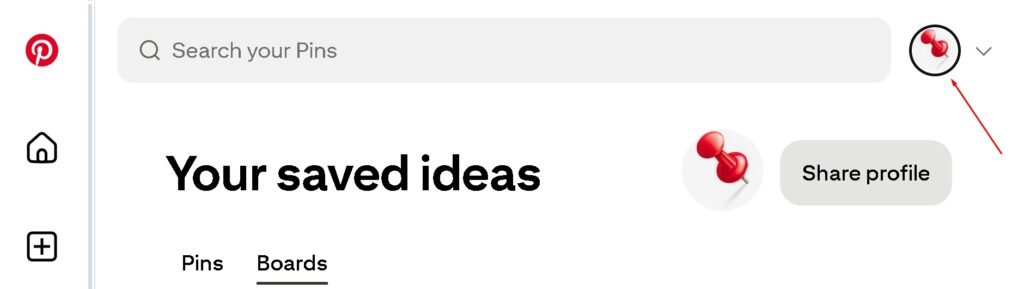
Option A: Convert your personal account to a business account
- Log into your Pinterest account
- Click your profile icon (or account name) in the top-right corner
- From the dropdown menu, click “Convert to business”
- Follow the prompts to complete the conversion
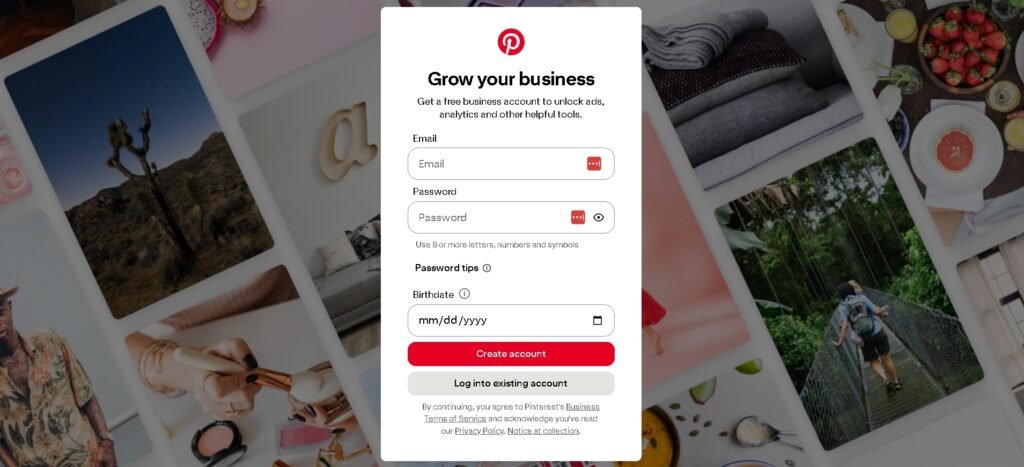
Option B: Create a new business account (keep your personal account separate)
- Go to business.pinterest.com
- Click “Sign up” in the top-right corner
- Fill in the signup form:
- Email address
- Password
- Birthdate
- Click “Create account”
- Complete the business profile setup (business name, website, description)
Step 2: Navigate to Pinterest Trends
Once you’re logged into your Pinterest Business account, you have two ways to access Trends:
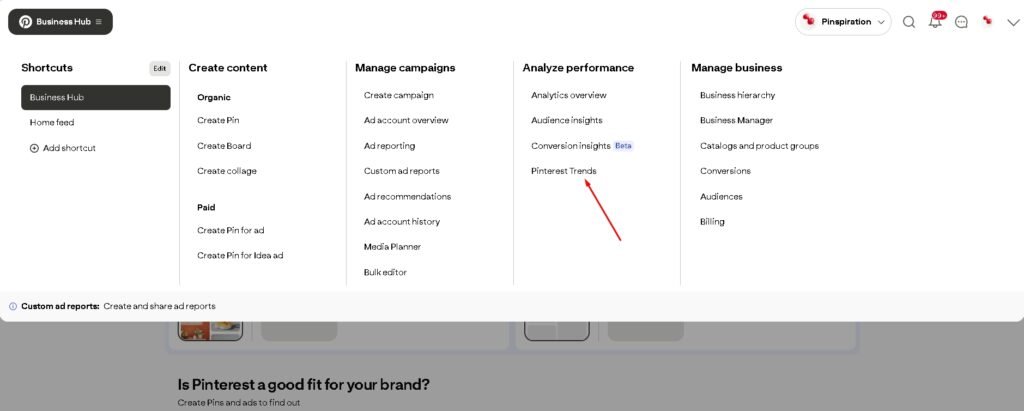
Option A: Through the Pinterest Menu
- Click the three horizontal lines (hamburger menu) in the top-left corner
- From the dropdown menu, click “Business Hub” (under Shortcuts)
- On the Business Hub page, look under “Analyze performance” section
- Click “Pinterest Trends”
Option B: Direct URL
- Go directly to: trends.pinterest.com
- Log in with your business account if prompted
Both methods take you to the same Trends dashboard.
Step 3: Select Your Target Region
In the top-right corner of the Trends page, you’ll see a region selector. Choose the country where your target audience lives.
If you’re a US-based blogger targeting American readers, select “United States.” If your audience is in Canada, select “Canada.”
This matters because Pinterest users in different regions search for different things.

How to Use Pinterest Trends for Keyword Research
Accessing the Keyword Search Tool
When you first land on Pinterest Trends, you’ll see the “Trends overview” page. To search for specific keywords, you need to access the Search Trends tool:
- Look at the left sidebar menu labeled “Pinterest Trends”
- Click on “Search trends” (the third option with a magnifying glass icon)
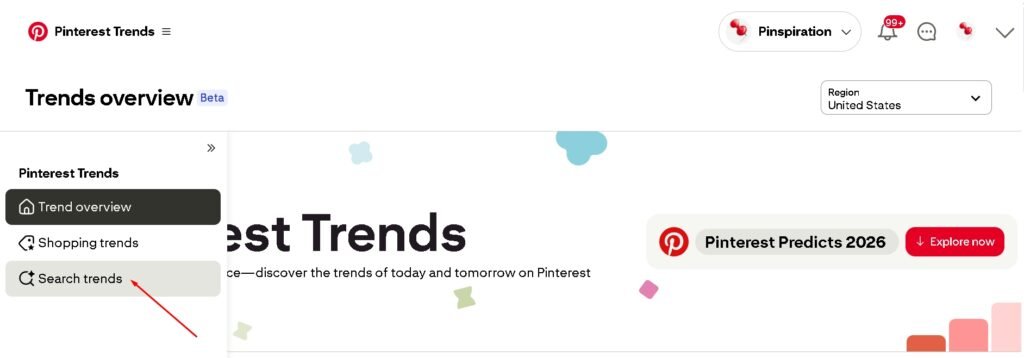
This takes you to the keyword search interface where you can type in specific keywords and see their performance data.
Understanding the Data
Once you’ve searched for a keyword, you’ll see:
- Interest over time graph: A line graph showing how search volume changes over the past year
- Date range selector: Top-right corner (usually set to “Past 1 year”)
- Keyword pills: Your searched keywords appear as colored pills above the graph
- Related trends: Suggested related keywords appear below the graph
- Demographics: Age and gender breakdown of searchers (further down the page)
Example: Using Trends to Plan Content
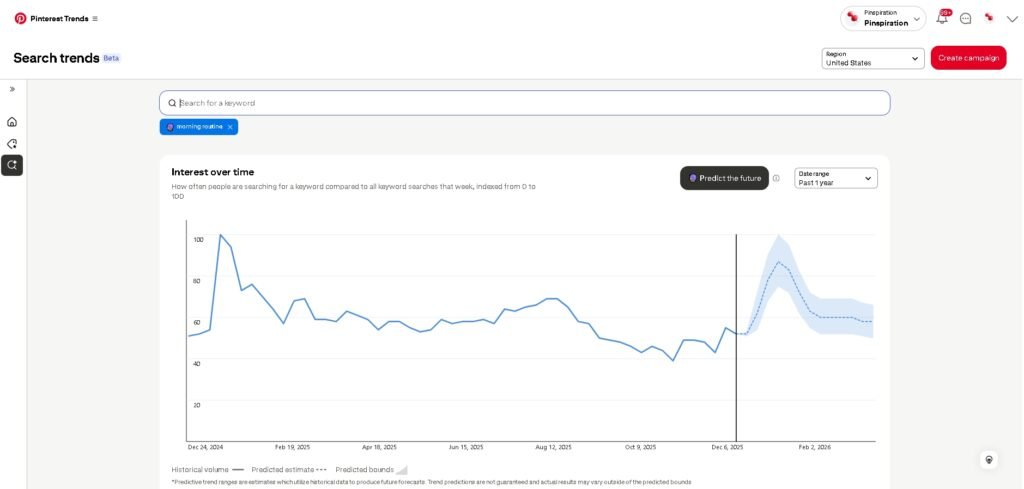
Let’s say you’re a wellness blogger considering writing about “morning routines.”
Type “morning routine” into the search box and press Enter.
What You’ll See:
- A line graph showing how “morning routine” search volume fluctuates over 12 months
- Peak months when searches are highest
- Low periods when searches decline
- The Y-axis shows relative search interest (0-100 scale, where 100 is peak popularity)
- The X-axis shows months over the past year
If the graph shows that “morning routine” searches spike in January, you now know:
- January spike = New Year’s resolutions, fresh starts
This means you should create and pin this content in November & December —right before the search volume spikes.
Comparing Multiple Keywords
One of the most powerful features of Pinterest Trends is the ability to compare up to four keywords at once.
After you’ve searched for your first keyword and see the graph:
- Click in the search box again (above the graph)
- Type a second keyword (e.g., “meal prep”)
- Press Enter
- The second keyword will be added as a different colored line on the same graph
- Repeat to add up to 4 keywords total
Let’s say you’re deciding between these content ideas:
- meal prep
- morning routine
- pumpkin spice recipes
- valentine gift idea
Pinterest will show you:
- Which keyword gets more searches overall
- When each one peaks throughout the year
- How they compare to each other
What This Tells You:
- Which keyword is worth targeting first
- Whether your content ideas overlap or serve different audiences
- When to publish and promote each piece of content
- Which keywords have seasonal patterns vs. consistent search volume
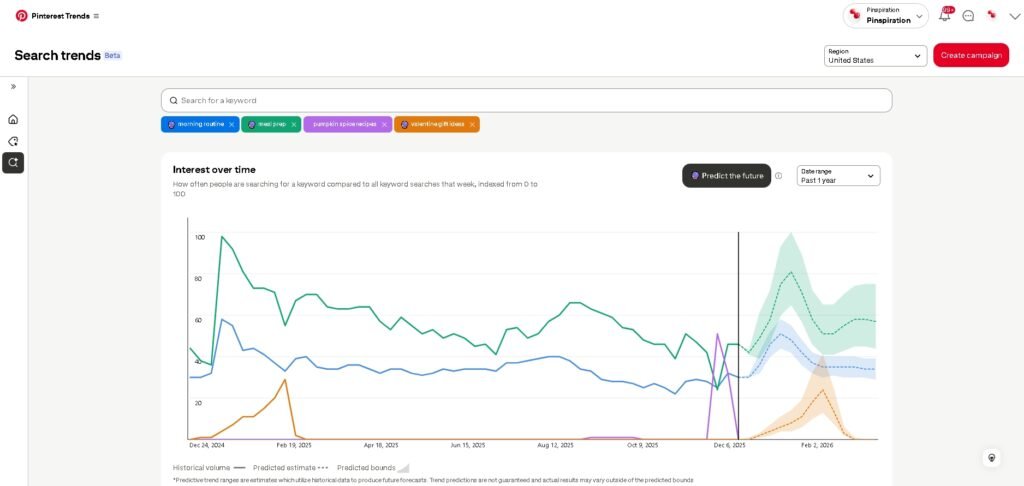
Pro Tip: Notice in the example graph how some keywords (like “pumpkin spice recipes”) show a dramatic seasonal spike, while others remain relatively steady. This tells you which content needs perfect timing vs. which can be published anytime.
AI Assistance: Planning Your Content Calendar with Trends Data
Once you’ve identified seasonal keyword patterns in Pinterest Trends, use AI to build a strategic content calendar.
Copy-Paste Prompt for Google Gemini:
I'm planning my blog content calendar based on Pinterest Trends data. Here's what I found:

Keyword: [INSERT KEYWORD]
Peak months: [INSERT MONTHS]
Low months: [INSERT MONTHS]

Help me create a 3-month content plan that:
1. Publishes content 1-2 months BEFORE the peak
2. Includes 3-5 blog post ideas around this keyword
3. Suggests the best months to create, publish, and promote each post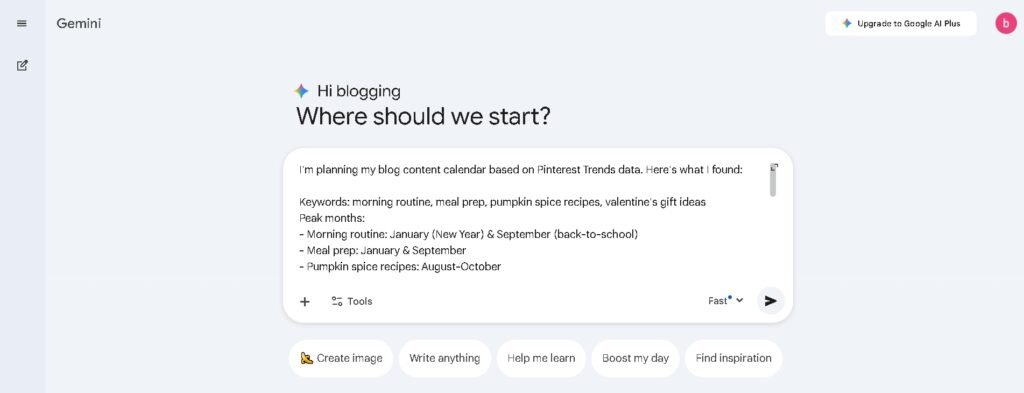
When to Use This:
- After you’ve identified seasonal trends for your top keywords
- When planning your first 10-20 blog posts
- To avoid publishing content after the trend has already peaked
How to Organize Your Pinterest Keywords
At this point, you’ve probably collected 50-100+ potential keywords. That’s amazing—but now you need a system to organize them so you can actually use them.
Here’s the simple spreadsheet method I use:
Create a Pinterest Keyword Tracker
Open a Google Sheet or Excel file and create these columns:
- Keyword – The exact search term
- Search Volume – High / Medium / Low (based on Ads Manager data or autocomplete position)
- Niche Category – Which part of your niche does this fit? (e.g., “Meal Prep,” “Budget Cooking,” “Kid-Friendly Recipes”)
- Content Type – What format works best? (How-To Guide, Listicle, Checklist, Comparison)
- Blog Post Idea – A working title for a potential blog post
- Priority – High / Medium / Low (which keywords to target first)
- Board Name – Potential Pinterest board to create for this keyword
Example:
| Keyword | Volume | Category | Content Type | Blog Post Idea | Priority | Board Name |
|---|---|---|---|---|---|---|
| meal prep for beginners | High | Meal Prep | How-To Guide | How to Start Meal Prepping (Even If You Hate Cooking) | High | Meal Prep for Beginners |
| easy meal prep recipes | High | Meal Prep | Listicle | 15 Easy Meal Prep Recipes for Busy Moms | High | Easy Meal Prep Ideas |
| meal prep containers | Medium | Tools | Comparison | Best Meal Prep Containers (Budget-Friendly Picks) | Medium | Meal Prep Tools & Tips |
This tracker becomes your content roadmap. Every blog post you write, every pin you create, and every board you set up should tie back to a validated keyword in this spreadsheet.
Common Mistakes to Avoid When Researching Pinterest Keywords
According to top Pinterest experts like Anastasia Blogger and Sophia Lee, these are the critical mistakes that prevent beginner bloggers from seeing results.
Mistake #1: Using Only Broad, Competitive Keywords (OR Only Long-Tail Keywords)
Many beginners make one of two mistakes: they either target massive keywords like “meal prep” or “budgeting tips” that have millions of competing pins, or they swing too far in the opposite direction and only use ultra-specific long-tail phrases.
Here’s what Pinterest experts found: According to Anastasia Blogger’s testing, keywords with very low search volume rarely perform well on Pinterest. The reason? Pinterest is primarily a mobile app, and typing long keyword phrases is inconvenient. Instead, users tap the colorful keyword suggestion bubbles that appear below the search bar—making popular autocomplete suggestions even more powerful over time.
The Fix: Target 2–3 word phrases that appear in Pinterest’s autocomplete suggestions (like “meal prep for beginners” or “easy meal prep ideas”). These hit the sweet spot: specific enough to have clear intent, broad enough to actually get searched. Save ultra-long-tail keywords for your pin descriptions, not your primary targeting.
Mistake #2: Ignoring Seasonal Trends (And Wrong Timing)
According to Pinterest’s official guidance and top marketing experts at Tailwind and Marketing Artfully, seasonal content needs a much longer lead time than most bloggers realize.
Publishing Christmas content in December is already too late. By then, Pinterest has already indexed, tested, and promoted pins that were published months earlier.
The Fix: Use Pinterest Trends to identify when keywords peak, then publish your content 6–12 weeks (45–90 days) BEFORE the peak. If “Christmas cookies” spikes in December, publish in September–October. Pinterest needs time to index your pins, test them with small audiences, and build momentum before the search volume explodes.
Mistake #3: Relying Only on Autocomplete
Pinterest autocomplete is excellent for discovering what people search for, but it doesn’t show search volume estimates or seasonal patterns.
The Fix: Use all three methods together:
- Autocomplete finds keywords that real users search
- Trends shows you when to publish
- Ads Manager gives you volume estimates
This complete picture helps you choose keywords strategically, not just based on guesses.
Pinterest autocomplete is excellent for discovering what people search for, but it doesn’t show search volume estimates or seasonal patterns.
The Fix: Use all three methods together:
- Autocomplete finds keywords that real users search
- Trends shows you when to publish
- Ads Manager gives you volume estimates
This complete picture helps you choose keywords strategically, not just based on guesses.
Mistake #4: Not Validating AI-Generated Keywords
AI tools like Perplexity or Google Gemini can suggest keyword variations quickly, but they don’t have real-time Pinterest search data. Some AI-suggested phrases sound plausible but have zero actual searches on Pinterest.
The Fix: Always validate AI-suggested keywords by typing them into Pinterest’s search bar. If autocomplete doesn’t suggest it, real users probably aren’t searching for it. Use AI to speed up your brainstorming, but verify with Pinterest’s actual data before committing.
Mistake #5: Keyword Stuffing or Using Keywords Unnaturally
According to SimplePinMedia and multiple Pinterest marketing experts, cramming too many keywords into pin descriptions triggers Pinterest’s spam filters and hurts distribution.
The Fix: Use 1–2 primary keywords naturally within sentences in your pin description. Pinterest recommends one long-tail keyword per sentence, with a maximum of 6 sentences. Then add 3–5 relevant hashtags at the end. Pinterest reads your content for context—keyword stuffing actually damages your ranking instead of helping it.
Mistake #6: Forgetting to Update Your Keyword Research
Pinterest trends shift constantly. What was popular six months ago might be declining now, and new keyword variations emerge regularly.
The Fix: Revisit your keyword research every 3–6 months. Check Pinterest Trends to see if your top keywords are still growing or if new variations have emerged. Pinterest also shows you keyword performance data in your Pin analytics—if a keyword you’ve been targeting suddenly drops in impressions, that’s your signal to research fresh variations or pivot to emerging related keywords.
What to Do With Your Pinterest Keywords
You’ve done the research. You have a spreadsheet full of validated keywords. Now what?
Here’s exactly how to use them:
1. Name Your Pinterest Boards with Keywords
Don’t create boards with cute, vague names like “Yum” or “Inspo.”
Instead, use your researched keywords as board titles. According to Pinterest marketing experts at MadPin Media and Tailwind, board names should be 2–3 words maximum—clear, keyword-focused, and directly searchable.
Examples:
- ✅ “Meal Prep for Beginners”
- ✅ “Budget Meal Prep Ideas”
- ✅ “Easy Meal Prep Recipes”
When someone searches “meal prep for beginners” on Pinterest, your board name tells Pinterest: “This board is exactly what they’re looking for.”
Pro tip: Your Pinterest boards should mirror your blog’s main content categories. If you’re creating a board, you should have at least 20–30 pieces of content ready to save to it.
2. Write Blog Posts Around Validated Keywords
Every blog post you write should target a specific Pinterest keyword you’ve validated through research.
For example:
- Keyword: “morning routine for busy moms”
- Blog Post Title: “My Simple Morning Routine for Busy Moms (Ready in 30 Minutes)”
This ensures you’re creating content that people are actively searching for, not just guessing what might work.
3. Use Keywords in Pin Titles and Descriptions
When you create a pin for your blog post, include the keyword naturally in:
- The pin title (keep it under 60 characters for mobile visibility)
- The first sentence of the pin description (Pinterest gives this more weight)
- The image file name (before uploading to Pinterest)
According to Tailwind and Pinterest SEO experts, pins with keyword-optimized titles and descriptions get 25% more impressions and significantly more clicks than pins without strategic keyword placement.
Important: Use keywords naturally in complete sentences. Avoid keyword stuffing—Pinterest’s algorithm penalizes this and can reduce your distribution.
4. Plan Your First 10 Blog Posts
Use your keyword tracker to map out your first batch of blog posts. Choose a strategic mix of:
- High-volume keywords (long-term traffic potential, but more competitive)
- Medium-volume keywords (easier to rank for as a beginner)
- Evergreen topics (relevant year-round, consistent traffic)
- Seasonal topics (aligned with upcoming trends, publish 6–12 weeks early)
This balanced approach gives you quick wins while building long-term authority.
What’s Next?
You now know how to find Pinterest keywords that real people are actively searching for—without spending a dime on paid tools.
Prefer a Faster, Automated Solution?
The two free methods above work perfectly for beginners who have time to research manually. But if you’re juggling a day job, family commitments, or simply want to speed up your keyword research by 10x, here are three beginner-friendly paid tools that Pinterest experts actually use:
1. Tailwind’s Pinterest Keyword Finder (Free + Paid Plans)
What it does: Enter your website URL, and Tailwind automatically generates a customized list of the most relevant, high-search Pinterest keywords based on your content.
Why beginners love it: No manual searching required. Tailwind pulls keywords directly from Pinterest’s algorithm and shows you which ones are trending right now for your specific niche.
Pricing: Free plan available with limited features. Paid plans start around $14.99/month.
Best for: Bloggers who want keyword research + pin scheduling in one tool.
Try Tailwind’s Free Keyword Finder
2. KeySearch Pinterest Keyword Tool (17–79/month)
What it does: Uses Pinterest’s autosuggest + proprietary algorithms to show you search volume, difficulty scores, and trend data for thousands of Pinterest keywords.
Why beginners love it: Clean interface, accurate data, and shows you exactly how competitive each keyword is. You’ll know which keywords are “easy wins” vs. “too competitive.”
Pricing: Starter plan 17/month. Pro plan 79/month (includes Google SEO tools too).
Best for: Bloggers who want precise data on search volume and keyword difficulty before committing to a topic.
Check out KeySearch’s free trial
3. PinClicks Keyword Explorer (29–49/month)
What it does: Access to 20+ million official Pinterest keywords with actual search volume data directly from Pinterest. You can track keyword rankings for your account over time.
Why beginners love it: “It’s like Pinterest Trends, but without limits.” You can search any keyword (not just popular categories) and see real monthly search volume + growth trends.
Pricing: Plans start at $29/month.
Best for: Serious bloggers who want the most comprehensive Pinterest keyword database available.
Do You Need a Paid Tool?
Honest answer: Not if you’re just starting out.
The free methods in this guide are exactly what successful Pinterest bloggers like Anastasia Blogger and Sophia Lee used to grow their first blogs. Paid tools save time, but they don’t find better keywords—they just find them faster.
Use a paid tool if:
- ✅ You’re publishing 8+ blog posts per month and need faster research
- ✅ You’re tracking multiple blogs or clients
- ✅ You want historical trend data and competitive analysis
- ✅ Time is more valuable than $15–30/month
Stick with free methods if:
- ✅ You’re publishing 2–4 posts per month
- ✅ You’re pre-launch and still validating your niche
- ✅ You enjoy the research process and have 1–2 hours per week
- ✅ You’re on a tight budget
Organizing Your Keywords Into a Pinterest-Friendly Blog Structure
Now that you have a spreadsheet full of validated keywords (whether from free methods or a paid tool), the next step is to organize them into blog categories that make sense for both Pinterest SEO and your readers.
That’s exactly what we’ll cover in the next post: How to Choose Blog Categories That Work on Pinterest (Pre-Launch Planning).
We’ll take the keywords you just researched and use them to build a blog structure that’s optimized for traffic from day one.
Want to learn the complete Pinterest traffic system from someone who’s been there? Anastasia Blogger’s Pinterest SEO Traffic Secrets walks you through the exact strategy to turn keyword research into consistent, sustainable blog traffic.
Final Thoughts
Doing Pinterest keyword research before you launch your blog might feel like extra work. You’re probably excited to just start writing and hitting publish.
But here’s what Pinterest experts consistently emphasize: validation before creation saves months of wasted effort.
According to Anastasia Blogger, Sophia Lee, and countless successful Pinterest bloggers, the difference between accounts that grow and accounts that stagnate comes down to this single step—researching what people actually search for instead of guessing.
You don’t need expensive tools or fancy software. Just Pinterest itself, a simple spreadsheet, and the two free methods covered in this guide.
Your action plan:
- Start with one niche keyword from your blog topic
- Follow the two research methods (Autocomplete → Trends)
- Build your keyword tracker with at least 20–30 validated keywords
- Move on to the next post where we’ll organize everything into a Pinterest-friendly blog structure
The work you do now—before you write a single post—sets the foundation for everything that follows.
You’ve got this.